21 October 2026
Saved searches and alerts
Save a search and get an email or app notification when something new matches it. For data licences.
Save a search and get a notification when something new matches it, either via email or mobile device notification with the PeakLoad app.
Saved searches and alerts are available for customers with data licences. If you'd like to add them to your subscription, contact [email protected].
Save a search or create an alert
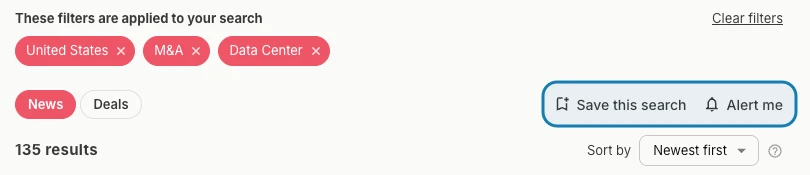
Run a search, then use the buttons above your results:
- Save this search keeps it on your saved searches page, ready to run again. It shows how many new results it has since you last looked.
- Alert me saves it and turns on an alert, so new matches come to you.
Choose how often
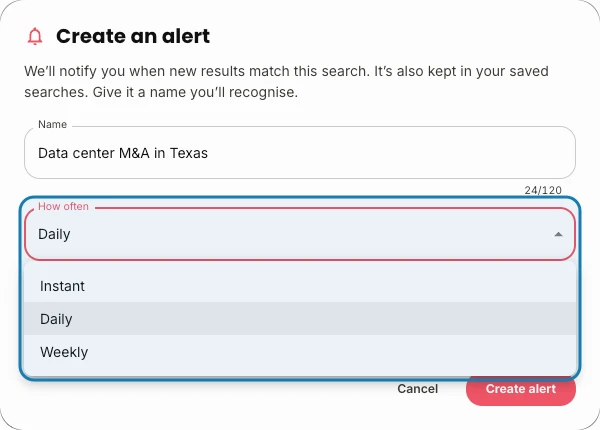
Give your alert a name you'll recognise and choose how often you hear about new matches:
- Instant: soon after a matching story is published
- Daily: one notification a day
- Weekly: one notification a week
Deals are never sent instantly, so a search that only covers deals offers Daily and Weekly.
Manage your alerts
Find your alerts and saved searches under Search, in Saved & Alerts.

Each alert shows when its next notification is due. From there you can change how often it runs, view its results, or turn it off, which keeps it as a saved search. Alert settings sets the time your daily and weekly notifications go out, and your time zone.

Keep alerts useful
A search that would match too much can't be turned into an alert. You can still save it, and narrowing it down makes it available for alerts.